
Lazada Connector Configuration
This guide explains how to set up the Lazada Connector in Axis to integrate your Lazada Seller account(s) and manage multiple marketplaces efficiently in Southeast Asia. Follow these steps to configure your account, synchronize your product catalog, and prepare your shop for go-live.
Prerequisites
Before configuring the Lazada Connector, ensure you have:
A Lazada Seller account (Personal Self-Developed or Enterprise Self-Developed).
A valid email address and phone number for verification.
A digital copy of your business license (for Enterprise Self-Developed accounts).
A brief description of your integration purpose (e.g., “Connecting Axis ERP to our Lazada store for order and inventory synchronization”).
Note
The Lazada Open Platform account for API access is separate from your Lazada Seller account.
Create a Lazada Open Platform Account
Navigate to Lazada Open Platform: Go to https://open.lazada.com/ and click Create Account or Sign Up.
Select Account Type: Choose either:
Personal Self-Developed: For individuals without a business license.
Enterprise Self-Developed: For businesses with a registered license.
Important
Do not select other service provider types, as they are not applicable for Axis integration.
Complete Registration:
Enter your email, password, and phone number. Complete any verification steps (e.g., OTP via SMS).
For Enterprise Self-Developed accounts, upload your business license.
Provide a brief introduction (e.g., “Integration for Axis ERP to sync orders, inventory, and fees with Lazada”).
Submit for Approval: Submit your profile details. Approval typically takes a few hours to a couple of business days. Check your registered email for confirmation or requests for additional information.
Check Approval Status: If rejected, review the reason in the notification email or on the Lazada Open Platform Console. Edit and resubmit as needed.
Tip
Ensure accurate profile details to avoid delays. Common issues include incorrect account type selection or missing business license documents.
Create an App on Lazada Open Platform
To obtain the App Key and App Secret for Axis integration:
Access App Management: Log in to the Lazada Open Platform Console, navigate to , , and click Create App.
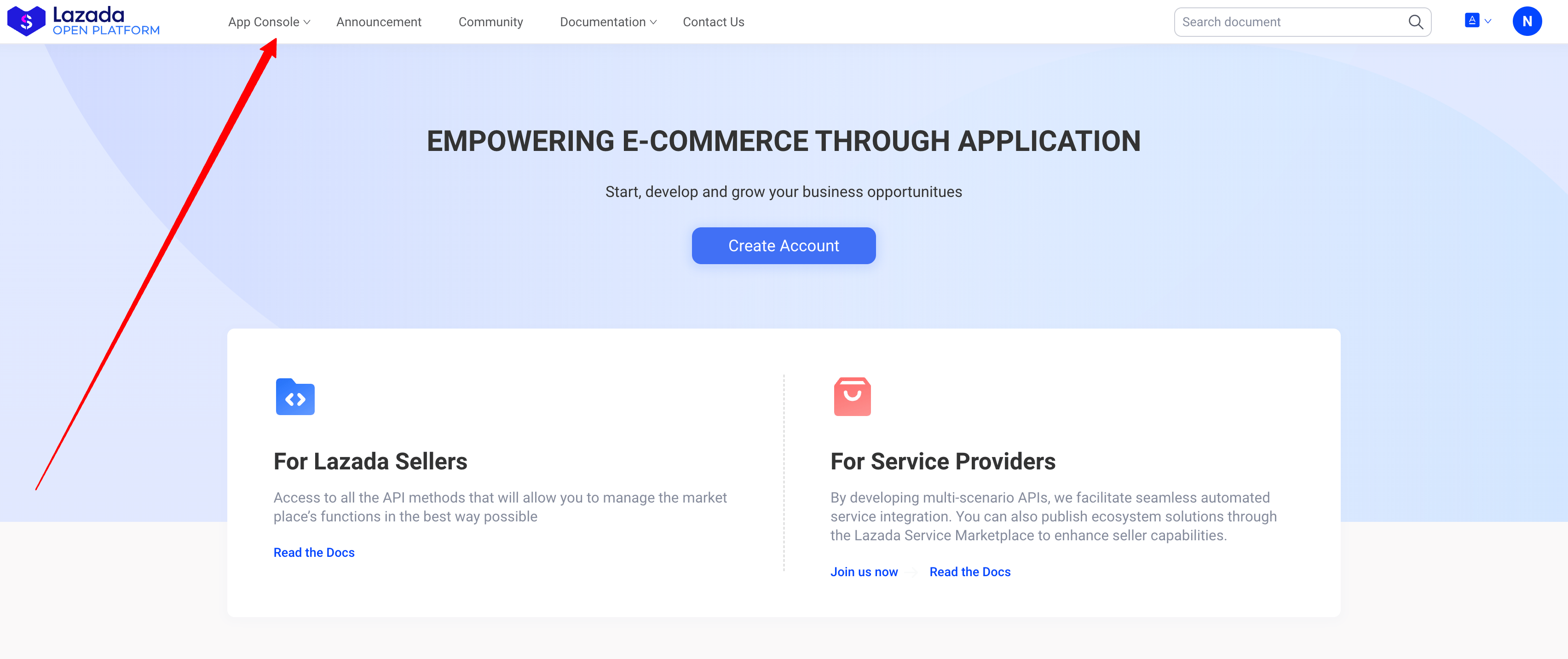
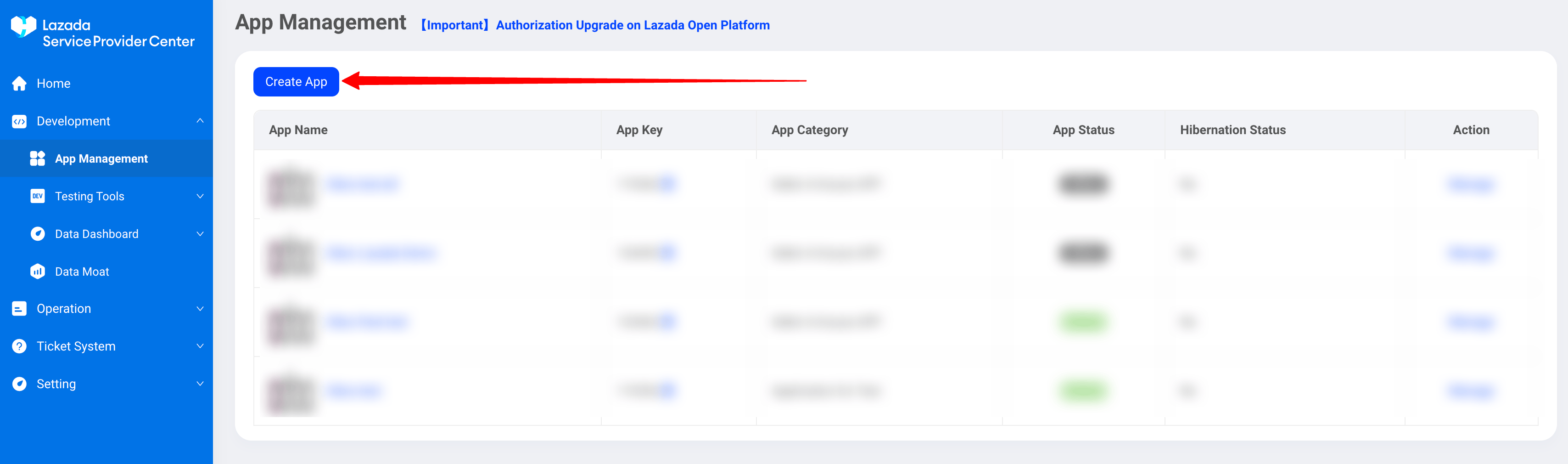
Select App Category: Choose Seller In-house APP.
Fill Application Form:
Provide your Axis database URL and tester account credentials (name and password).
For APP IP Address Management, select IP address(es) unavailable and enter “The application is cloud-hosted.”
Submit Application: App creation takes approximately 24 hours. Once approved, note the App Key and App Secret.
Connect Lazada Seller Account to Axis
To connect a Lazada Seller account in Axis, navigate to App from your Database and search for Lazada Activate.
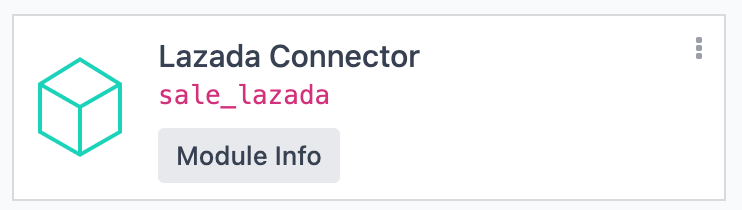
Enable Lazada Sync: In Axis, navigate to
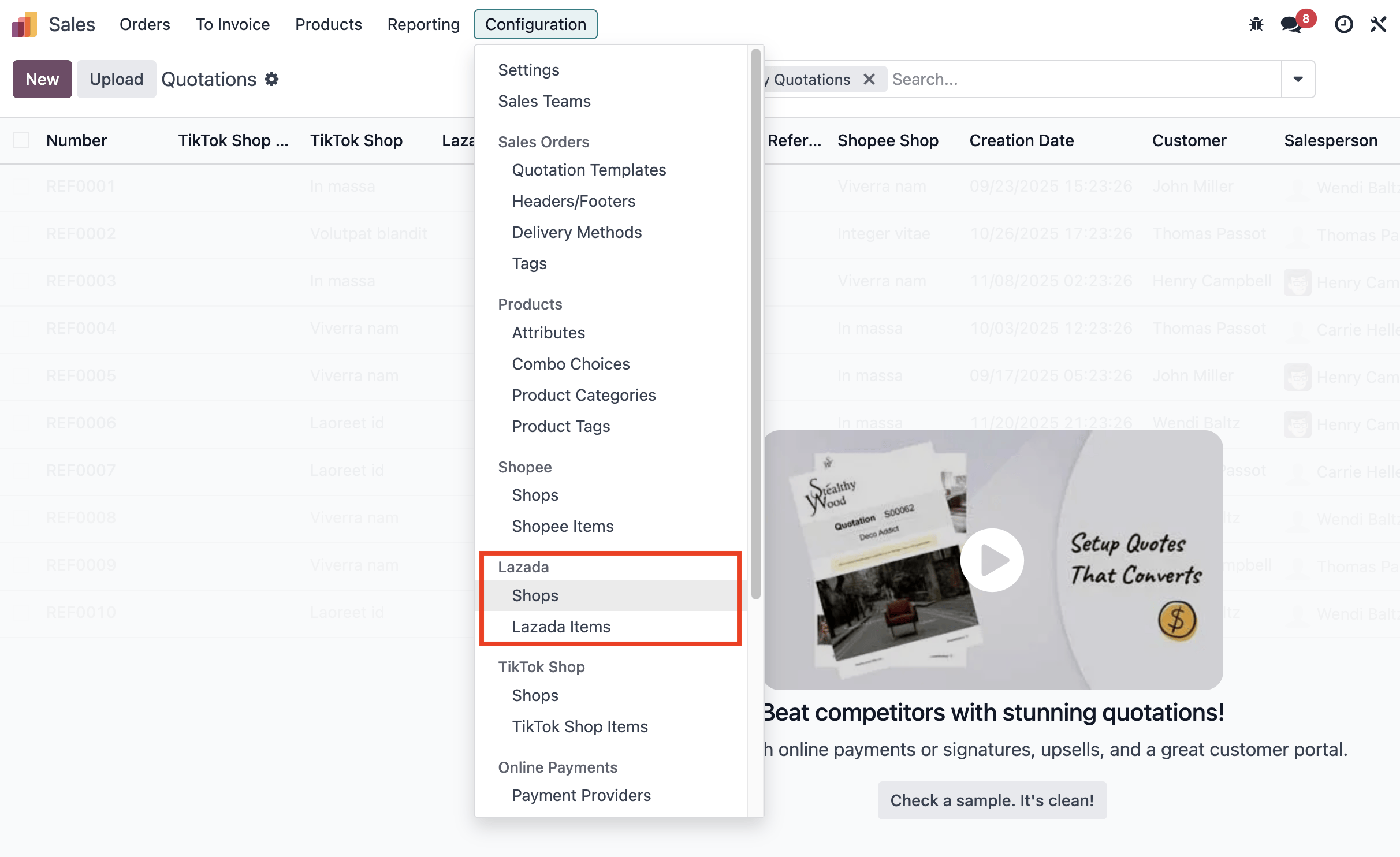
Connect a Lazada Account:
Go to and click Create New Shop.
Enter a name (e.g., “Lazada Malaysia”), App Key, App Secret, and select the marketplace (e.g., Lazada.com.my).
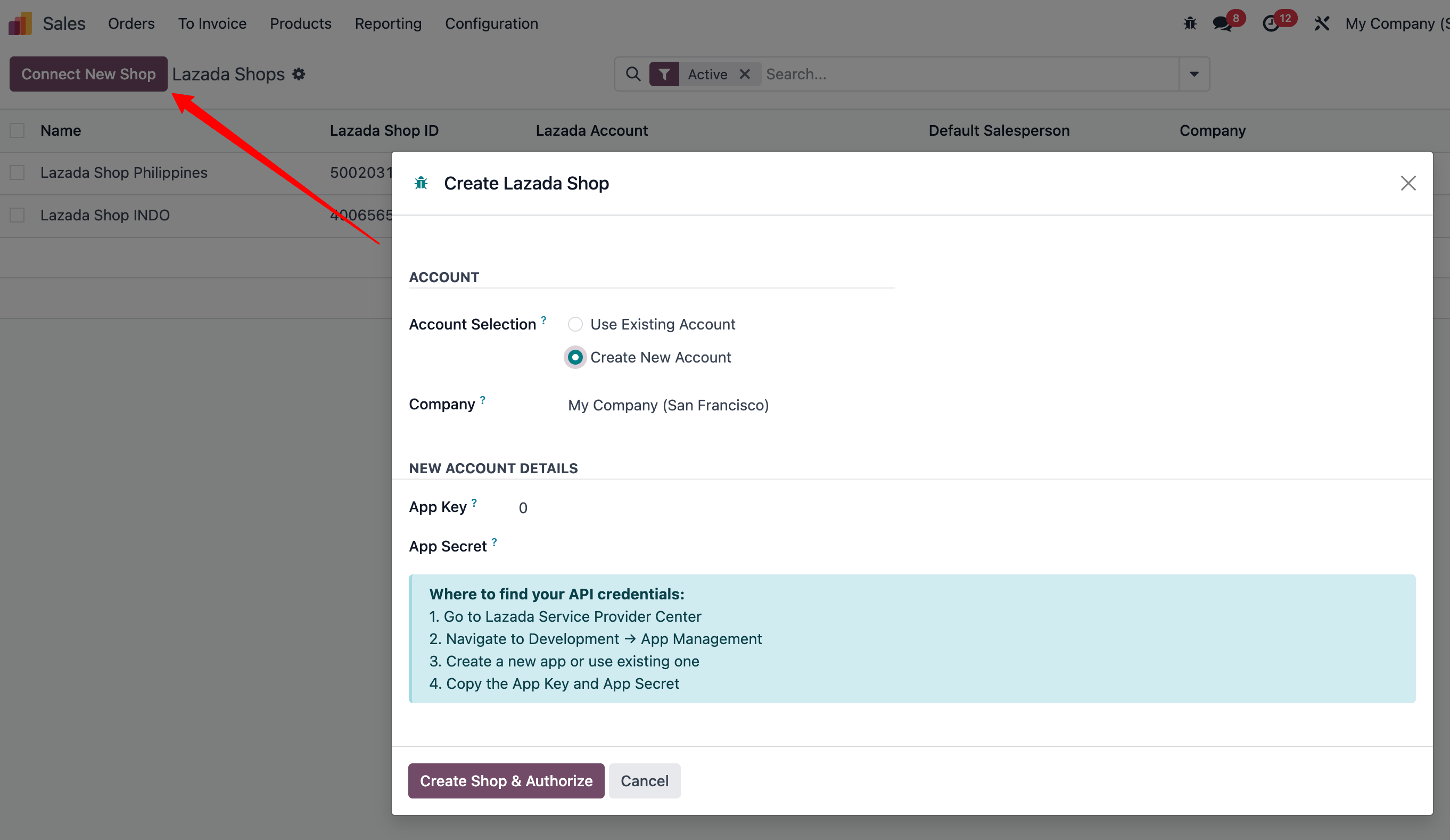
Link Account:
click Create Shop & Authorize
Click the button to redirect to the Lazada login or consent page. Log in with your Lazada Seller account credentials and grant Axis access.
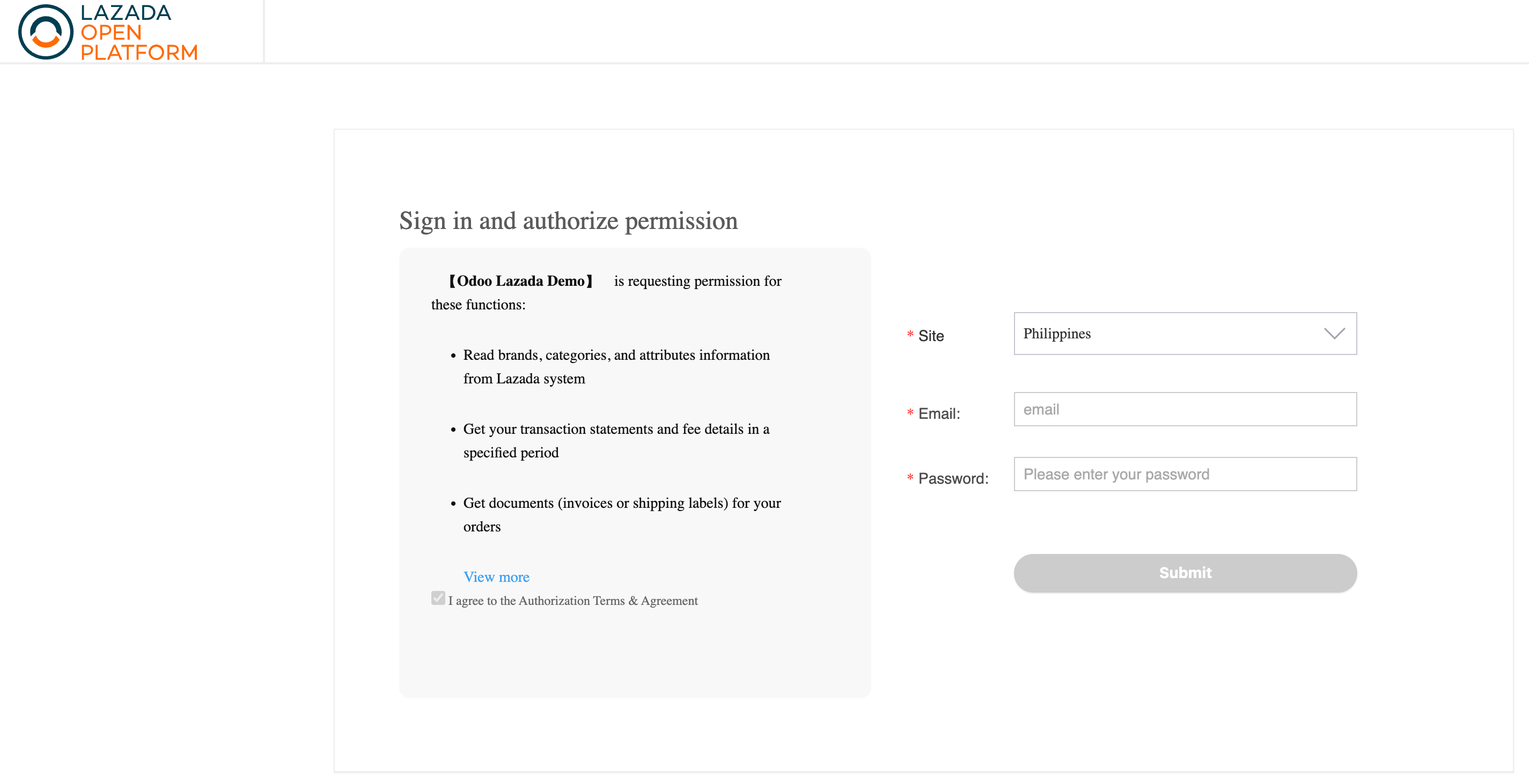
Upon successful authorization, Axis lists available marketplaces under the Lazada Shops tab.

Manage Marketplaces:
Newly added marketplaces are automatically synchronized. To disable synchronization for specific marketplaces, remove them from the list.
Avoid synchronizing the same shop multiple times to prevent duplicate orders.
Important
To maintain data integrity, ensure each shop is synchronized only once. If synchronization fails, try manually fetching orders before reconfiguring.
Configure Shop Before Go-Live
Set Up Warehouses:
Navigate to .
Select the Lazada account and configure the FBM Warehouse field to limit stock fetching to specific warehouses.
By default, all accounts use the same Lazada stock location. To isolate stock for a specific marketplace, create a separate account registration and assign a unique stock location.
Synchronize Product Catalog:
The product catalog will be matched automatically from the first synchronization. But in case you do the following:
Use the Sync Product Catalogue button in Axis to automatically fetch active Lazada products daily.
For new Axis databases, export the Lazada catalog from Lazada Seller Center (including SKUs). Import into Axis via , mapping SKUs to the Internal Reference field.
For existing Axis products, export both Lazada and Axis catalogs, map SKUs to Internal References in a spreadsheet, and import the updated mappings back into Axis.
Tip
Test catalog synchronization with a small product set to verify SKU mappings before full import.