
Axis Phone with OnSIP
OnSIP is a VoIP provider that can be set up to work with Axis Phone. An OnSIP account is required to use this service.
Important
Before setting up an account with OnSIP, verify the following requirements:
The business phone numbers are portable to OnSIP. Some providers may be unable to release the phone number due to local or regional guidelines.
The locations of the company and its call recipients are covered by OnSIP services.
OnSIP VoIP services are available in the United States (US) only. A US billing address and US credit card are required to use the service. Pricing may vary in Alaska or Hawaii.
Configure OnSIP in Axis
To configure OnSIP services in the Axis database, first install the Phone app.
View credentials in OnSIP
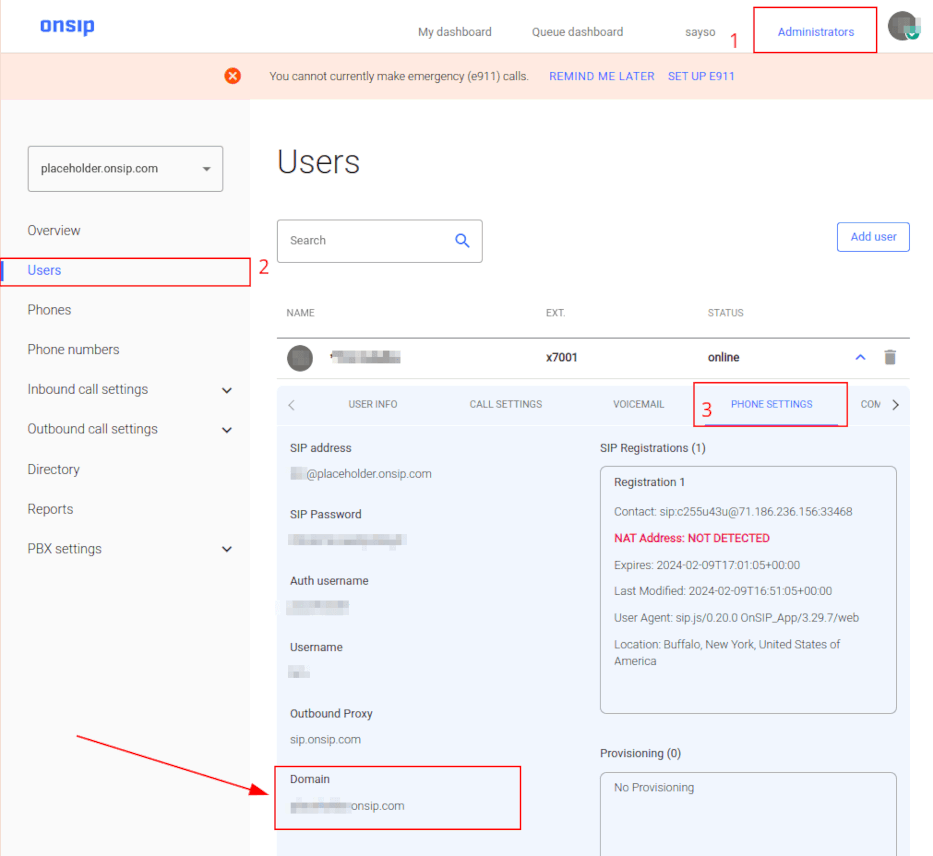
To view the necessary OnSIP credentials, navigate to OnSIP and log in, then click the Administrators link in the top-right corner of the page.
Next, in the menu on the left-hand side, click Users and select the user to be configured. The USER INFO tab opens to the right.
Click on the Phone Settings tab to view OnSIP configuration credentials.
Add OnSIP credentials
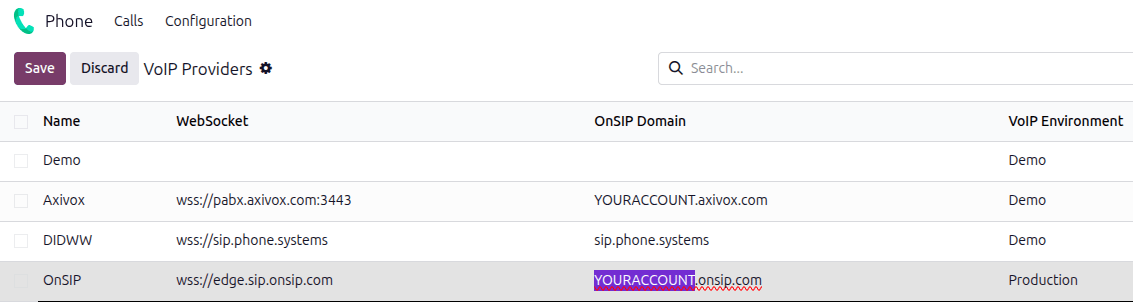
After installing the Phone - OnSIP module, go to the . Locate the OnSIP provider entry, and enter the following information:
OnSIP Domain: the domain that was assigned when creating an account on OnSIP. Replace
YOURACCOUNTwith the company account name.VoIP Environment: select Production.
Configure user settings
Next, each user’s OnSIP credentials must be configured in Axis. Navigate to select the user, and click the VoIP tab.
Add the following OnSIP credentials for the user:
Provider: select OnSIP.
Username: the user’s OnSIP username.
OnSIP Auth Username: the user’s Auth Username.
Secret: the user’s SIP Password.
Once the OnSIP credentials have been saved, the user can make calls with Axis Phone by clicking the (Phone) icon in the top-right corner of Axis.
See also
For additional setup and troubleshooting steps, see OnSIP’s knowledge base.
Handle incoming calls
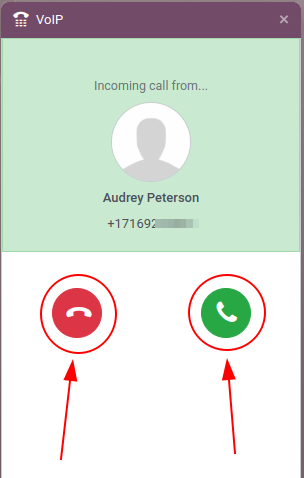
Incoming calls appear in the *Phone* widget. Click the green 📞 (phone) icon to answer the call, or click the red 📞 (phone) icon to ignore the call.
Troubleshooting
Missing parameters
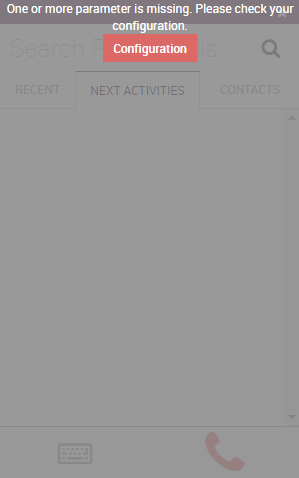
If a Missing Parameters message appears in the Axis Phone widget, refresh the browser and try again.
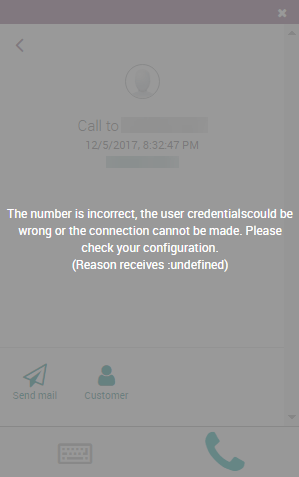
Incorrect number
If an Incorrect Number message appears in the Axis Phone widget, make sure to include the
phone number’s international country code. For example: in the phone number 16505555555, 1 is
the international country code for the United States.
See also
For a list of comprehensive country codes, visit: https://countrycode.org.
OnSIP smartphone app
To make and receive phone calls outside of Axis, users can use any SIP softphone app in parallel with Axis Phone. The OnSIP softphone app is available on Windows, macOS, Linux, iOS, and Android.