Storage categories
A storage category is used with putaway rules to assign a storage location to incoming products while accounting for the capacity of that location.
Follow these steps to complete the setup:
Assign a category to storage locations
Add the storage category as an attribute to a putaway rule
See also
Note
Assigning categories to storage locations tells Axis these locations meet specific requirements, such as temperature or accessibility. Axis then evaluates these locations, based on defined capacity, and recommends the best one on the warehouse transfer form.
Configuration
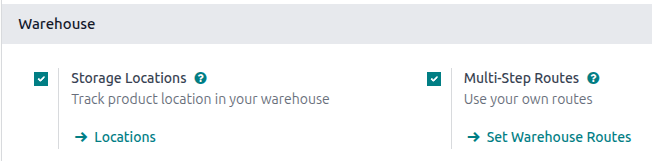
To enable storage categories, go to . Then, in the Warehouse section, ensure the Storage Locations and Multi-Step Routes features are enabled.
If intending to set capacities by package type, also make sure Packages is enabled. Click Save.
Define storage category
A storage category with specific limitations must be created first, before it is applied to locations, in order to decide the optimal storage location.
To create a storage category, go to , and click New.
On the storage category form, type a name for the category in the Storage Category field.
Options are available to limit capacity by weight, product, and package type.
Note
Weight limits can be combined with capacity by package or product (e.g. a maximum of one hundred products with a total weight of two hundred kilograms).
While it is possible to limit capacity by product and package type at the same location, it may be more practical to store items in different amounts across various locations, as shown in this example of capacity by package.
The Allow New Product field defines when the location is considered available to store a product:
If location is empty: a product can be added there only if the location is empty.
If products are the same: a product can be added there only if the same product is already there.
Allow mixed products: several different products can be stored in this location at the same time.
Tip
When clicked, the Locations smart button shows which storage locations the category has been assigned to.
Important
Axis does not automatically split quantities across multiple storage locations. If an incoming receipt contains several units or packages and the first recommended location exceeds its capacity, Axis still routes all items to that same location instead of selecting another one with available space.
(Example: If a location can hold 10 units and 12 units arrive, all 12 are still assigned to that location.)
Capacity by weight
On a storage category form (), set a maximum product weight in the Max Weight field. This limit applies to each location assigned this storage category.
This value must be set to greater than 0 if a product weight is defined.
Capacity by product
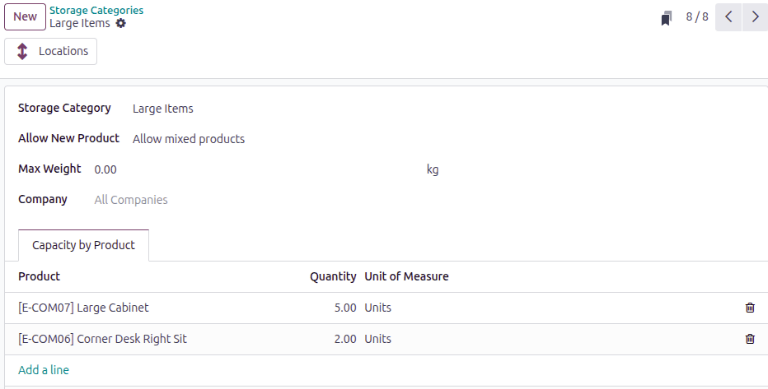
In the Capacity by Product tab, click Add a Line to input items, and enter their capacities in the Quantity field.
Example
Ensure only a maximum of five Large Cabinets and two Corner Desk Right Sit are stored at a
single storage location, by specifying those amounts in the Capacity by Product tab
of a storage category form.
Capacity by package
For companies using packages, it becomes possible to ensure real-time storage capacity checks, based on package types (e.g., crates, bins, boxes, etc.).
Create the package type before assigning it to a storage category. Create it on the Inventory tab of the product form (in the Packaging section), or create it from the Product Packagings page. Be sure to set the Package Type.
Example
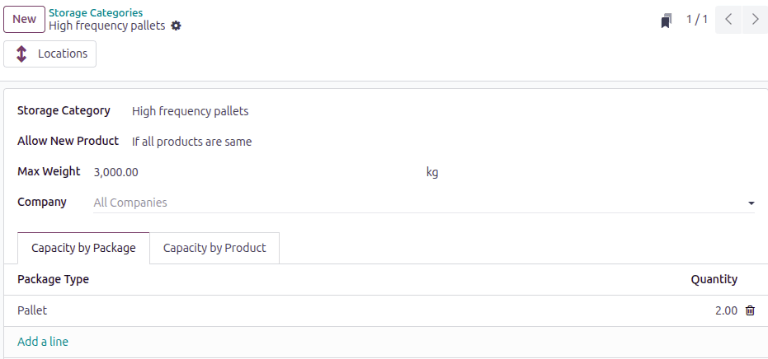
Create putaway rules for pallet-stored items, by creating the High frequency pallets storage
category.
In the Capacity by Package tab, specify the number of packages for the designated
Package Type, and set a maximum of 2.00 Pallets for a specific location.
Important
Axis does not automatically split quantities across multiple storage locations. If an incoming receipt contains several units or packages and the first recommended location exceeds its capacity, Axis still routes all items to that same location instead of selecting another one with available space.
(Example: If a location can hold 10 units and 12 units arrive, all 12 are still assigned to that location.)
Assign to location
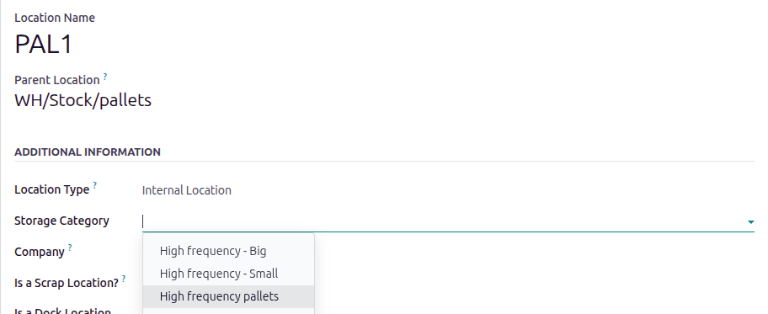
Once the storage category is created, assign it to a location. Navigate to the location by going to , and select the desired location. Then, select the created category in the Storage Category field.
Example
Assign the High frequency pallets storage category (which limits pallets stored at any location
to two pallets) to the WH/Stock/Pallets/PAL1 sub-location.
Putaway rule
With the storage category and location set up, create the putaway rule by navigating to .
Click the New button to create the putaway rule. Specify a location to store to in the Store to field.
Use the Sublocation field to specify that you want to use a sublocation with the storage category:
Last Used: The last location that had a move associated with it for that product or product category is used. If there is no last location used, the destination is whatever is specified in the Store to field.
Closest Location: The locations specified as part of the storage category are used. A storage category is mandatory in the Having Category field.
Example
Continuing the example from above, the High frequency pallets storage category is assigned to
the putaway rule directing pallets of lemonade to locations with the High frequency pallets
storage category assigned to them.

Note
If products are not routing to secondary locations for a storage category and a product weight is
defined, verify that the storage category’s Max Weight value is set to a number
greater than 0.
Use case: limit capacity by package
To limit the capacity of a storage location by a specific number of packages, create a storage category with a Capacity By Package.
Continuing the example from above, the High frequency pallets storage category is assigned to the
PAL1 and PAL2 locations.
Then, putaway rules are set, so that any pallets received in
the warehouse are directed to be stored in PAL1 and PAL2 locations.
Depending on the number of pallets on-hand at each of the storage locations, when two pallets of lemonade cans is received, the following scenarios happen:
If
PAL1andPAL2are empty, the pallet is redirected toWH/Stock/Pallets/PAL1.If
PAL1is full, the pallet is redirected toWH/Stock/Pallets/PAL2.If
PAL1andPAL2are full, the pallet is redirected toWH/Stock/Pallets.If
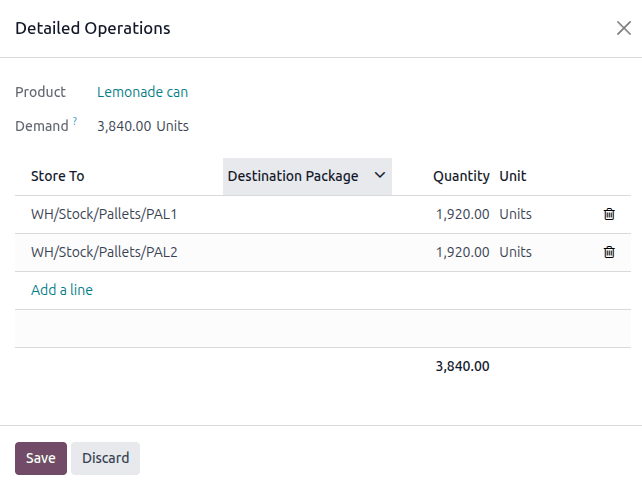
PAL1is partially full (for example, with one pallet), Axis treats more than one received pallet as a single pallet on the receipt. You must manually separate the two pallets into separate storage locations. Click the Details link to the right of the Units field, and then in the Detailed Operations box, click Add a line. Finally, split the receipt by quantity into separate locations, then click Save.